Import Images
To import images in Odoo 18, follow these steps:
- If the products are new:
- Prepare an Excel sheet that contains all the required product information.
- If the products already exist in the database and you only need to import images:
- Go to Inventory > Products > Products
- Select the products you want to update, Click on Actions > Export and then export them.

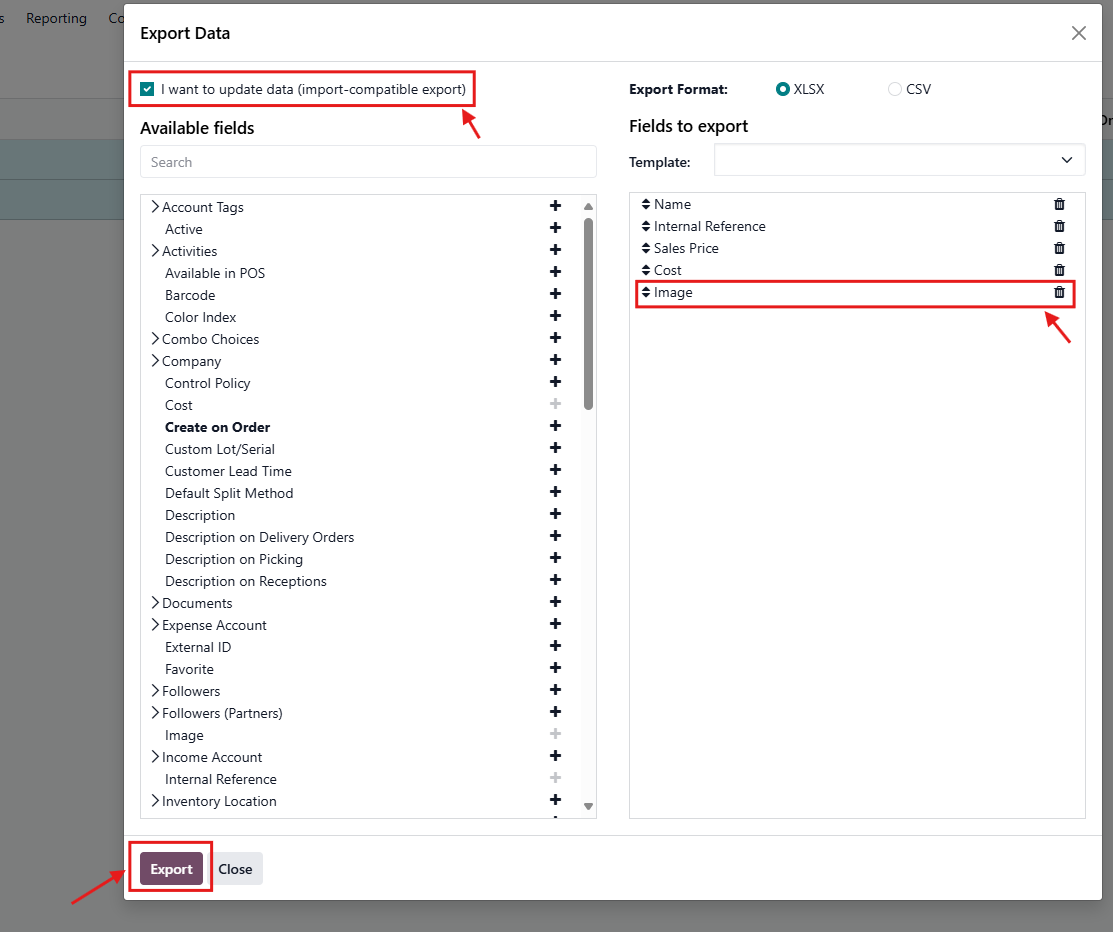
Make sure to enable the “Import-Compatible Export” feature. This allows Odoo to export the External ID of the products, ensuring that the import updates the existing records instead of creating new ones.
- Prepare your images:
- Odoo supports JPG and PNG formats.
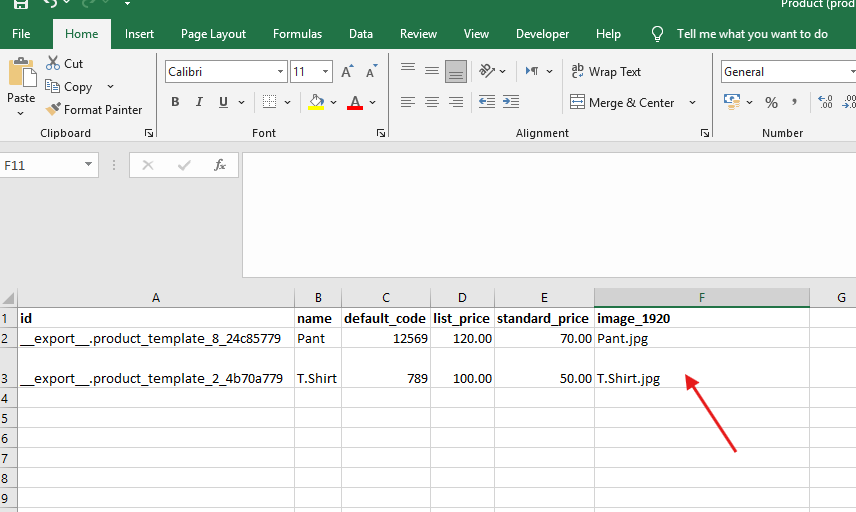
- Name each image file exactly as it appears in your Excel sheet, including the file extension (e.g., productname.jpg).
- Add the image names in the Images column beside the corresponding product name.
- (Please refer to the attached example for reference.)

- Import the file:
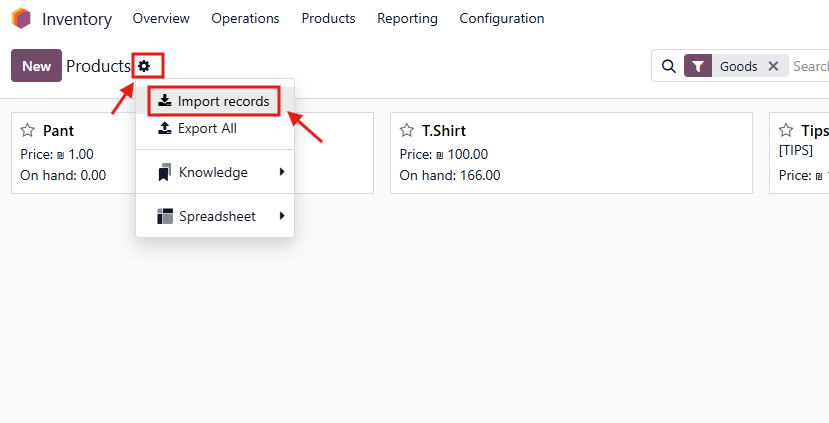
- Go to Inventory > Products > Products.
- Click on Gear Icon > Import Records
- Select your Excel file, map the fields correctly:
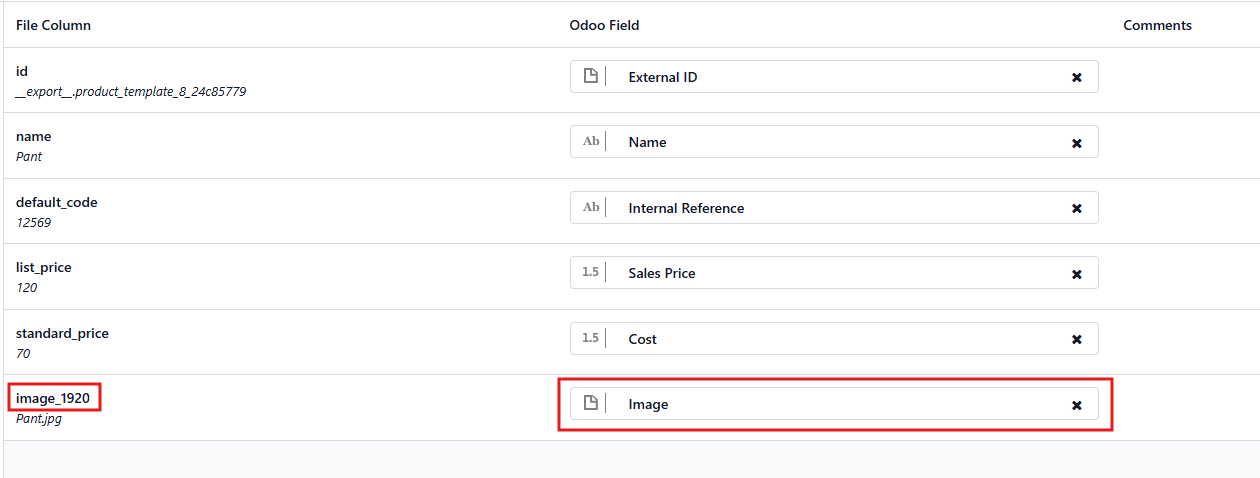
- Now, you need to upload the images you want to import:
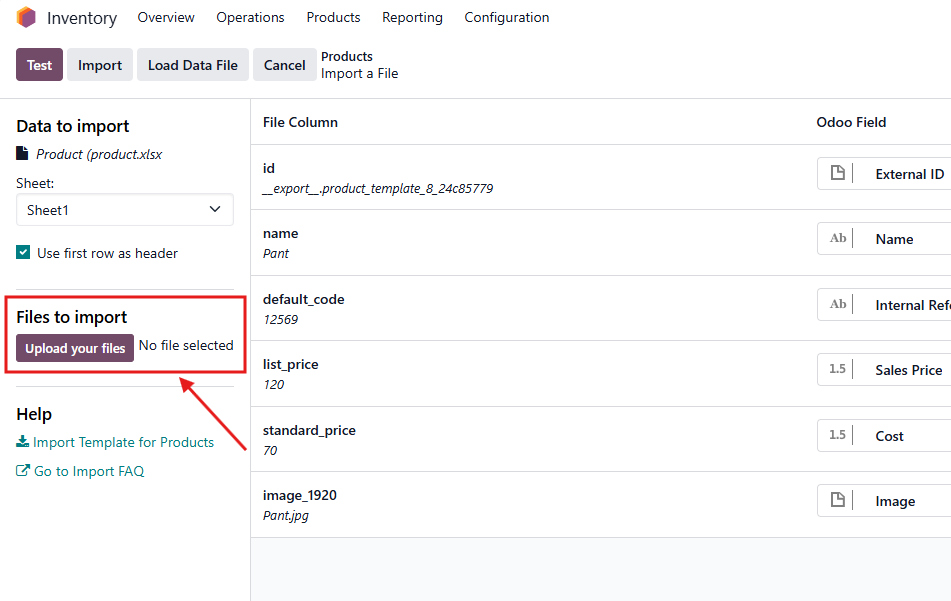
- Test and then click on Import Button:

Rating
There are no comments for now.
to be the first to leave a comment.