Import Product Categories
How to Import Product Categories and Link Them to the Correct Products in Odoo?
Step 1: Import Product Categories:
First, you need to import your product categories into Odoo.
- Prepare the Excel file:
-
Create an Excel sheet with two columns:
name → This column contains the Category Name.
-
Create an Excel sheet with two columns:
Example:
| name |
| Chairs |
| Office Chairs |
| Executive Office Chairs |
| Leather Office Chairs |
| Dining Chairs |
| Kids Chairs |
| Desks |
| Home Desks |
| Writing Desks |
| Study Desks |
- Import the categories:
- Go to Inventory > Configuration > Product Categories
-
Click the ⚙️ (Gear icon) and select Import Records

- Upload your Excel file
- Odoo will automatically detect and map the columns correctly
- Click Import
Once imported, your product categories will be available in Odoo.
Step 2: Link Product Categories to Products
After importing the categories, you need to link them to the right products.
It’s important to understand that Odoo identifies records by their internal IDs, not by names.
If you import a product sheet that references category names instead of IDs, Odoo will create new category records each time — even if the name already exists.
To prevent this, we’ll use the External IDs of the categories.
Step 3: Export Category External IDs
- Go to Inventory > Configuration > Product Categories
- Switch to List View
- Select all categories
- Click Actions > Export
- Enable the option “I want to update data (import-compatible export)”
- Select only the Name field
- Click Export
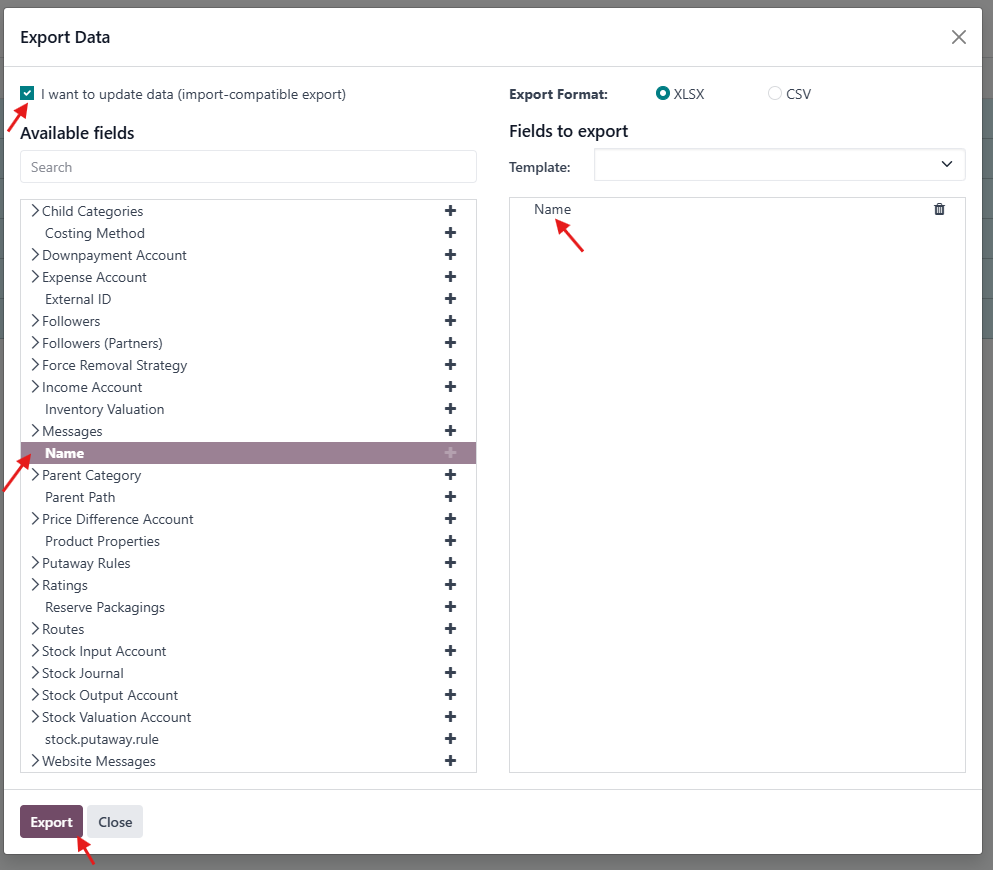
This will generate a file that includes each category and its corresponding External ID.
Step 4: Add Category IDs to the Product Sheet
- Open your product Excel sheet.
- Add a new column next to your Category Name column and name it: categ_id/id
- Create a new sheet (Sheet2) and paste the exported categories and their external IDs there.
-
Use the VLOOKUP function in Excel to match the category name in Sheet1 with the corresponding external ID in Sheet2.
The formula will fill the categ_id/id column with the correct category IDs.
Example:
Sheet1: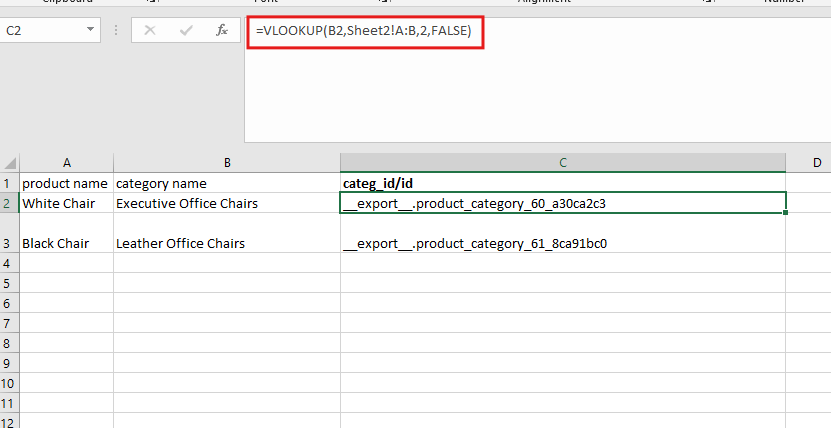
Sheet2: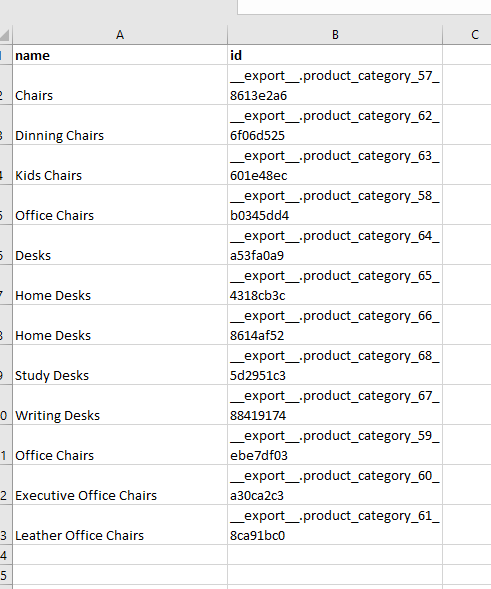
Hints and Best Practices:
- In Sheet2, ensure the category name appears before its external ID.
- Category names are case-sensitive — make sure they match exactly.
- Double-check your formulas before importing.
- If you encounter difficulties with the VLOOKUP formula or data preparation, you can ask ChatGPT for assistance.
There are no comments for now.
to be the first to leave a comment.